Draw a Maze
Draw the walls yourself, check that there is a way through, then print the maze with an answer page.
Recent
Your last 10 settings, saved only in this browser. Nothing is uploaded.
Draw a Maze is a free maze editor that runs in your web browser. You draw the walls yourself on a grid, check that the maze has a route from Start to Finish, and print it, with an optional answer page. There is no sign-up and nothing to install.
The page opens with a 12 by 12 grid holding an empty room, where only the outer border is a wall. You choose the size, drag walls along the lines between cells, and erase any walls that get in the way. A line of text under the buttons tells you whether the maze can be solved, whether it has loops, and how many dead ends it has.
Your drawing stays on your device, and nothing is uploaded. Teachers, parents and puzzle makers can use the result at home, in class, or in products they sell.
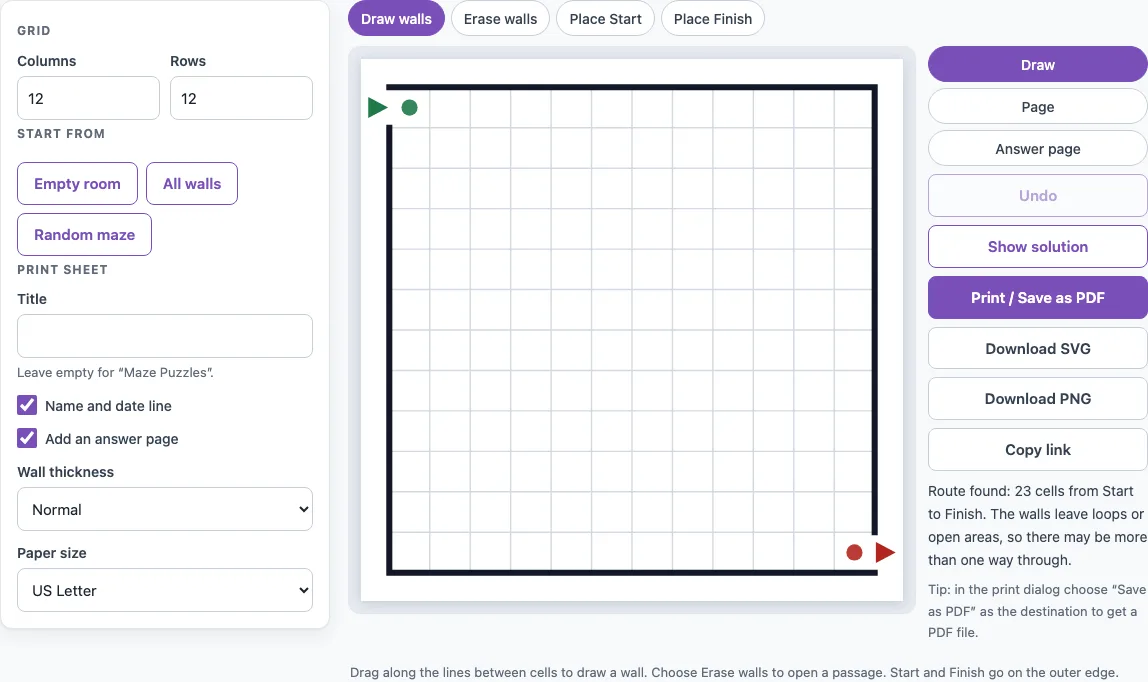
How to use the Draw a Maze tool
- Set the grid size. Enter Columns and Rows, each from 4 to 40.
- Choose a starting board. Click Empty room for a blank board, All walls to close every line between cells, or Random maze for a full maze you can then edit.
- Click Place Start, then click a cell on the outer edge. The opening is made on the outer side of that cell nearest your click.
- Click Place Finish, then click another cell on the outer edge.
- With Draw walls selected, press and drag along the lines between cells. Every line you pass over becomes a wall.
- Switch to Erase walls and drag along walls to open passages.
- Read the line of text under the buttons after each change. It confirms a route, reports loops and dead ends, and warns about sealed-off areas.
- Click Show solution to draw the shortest route in red, and Hide solution to remove it.
- Open the Page preview, set the title, wall thickness and paper size, then click Print / Save as PDF.
Undo (or Ctrl/Cmd+Z) takes back the last stroke or button, up to 60 steps. Copy link creates a web address that holds the whole drawing, and Download SVG or Download PNG saves the view you are looking at as an image. The drawing is also kept in this browser, so a reload brings it back.
How do you draw a maze?
To draw a maze by hand, build a grid, carve one winding route from Start to Finish, and then add side passages that never reconnect with that route. A puzzle maze needs a Start, a Finish, walls, and at least one open route between them. Most puzzle mazes have exactly one route, which means there are no loops where you could walk in a circle.
Picture the open cells as a tree. Every cell can be reached from every other cell, and there is only one path between any two. Dead ends are the passages that stop. Those are the places where a solver has to turn back, so they are the main way a maze gets harder.
- Draw a square or rectangle and divide it into a grid of cells, using grid paper or a ruler.
- Mark Start and Finish with openings in the outer border.
- Draw one winding route from Start to Finish first, with walls along both sides.
- Fill the rest of the grid with side passages that branch off the route and stop at a wall. Never let a passage join back to the route or to another passage.
- Add false turns near the Start and a long dead end near the Finish so the solver is misled.
- Solve the maze yourself with a pencil. If you find two ways through, close one of them.
How do you draw a simple or easy maze?
A simple or easy maze uses a small grid, such as 6 by 6 or 8 by 8. Give it a wide route with few side branches, so the path is easy to follow. Keep dead ends short and few in number.
For young children, draw thick walls so the lines are clear. The Thick wall setting in the print options does this for the printed page. For a harder maze, use a large grid with many dead ends, false turns, and a longer winding route.
How to make a maze
There are three ways to make a maze on this page. To make one by hand, follow the steps above on grid paper. To make one on screen, press All walls, choose Erase walls and carve a winding route from Start to Finish, then carve short side passages that stop at a wall. For a quick start, press Random maze and change whatever you do not like with the wall tools. If you want a maze made for you with settings for size, shape and difficulty and nothing to draw, the maze generator on this site does that.
Frequently asked questions
How do I design a maze that has only one answer?
Draw the route first, then add side passages that stop at walls instead of joining each other or the route. In the tool, the status line should say “No loops, so there is only one way through.” Click Show solution to check that the route you expected is the one the tool finds.
Can I print the maze I draw with an answer page?
Yes. Add an answer page is on by default in the print settings. The second page shows the same maze with the route in red. Each print sheet holds one maze, on US Letter or A4 paper.
Can I draw without a mouse?
Not for single walls. Drawing needs a mouse, a finger or a stylus, because there is no keyboard way to draw walls one at a time. Random maze makes a full maze without drawing, and the answer page works from the drawing however it was made.
Is it free?
Yes. It runs in your browser, is free, and needs no sign-up and nothing to install. Your drawing stays on your device and is not uploaded.
Can I use the mazes I draw in products I sell?
Yes. You can use the drawing at home, in class, or in products you sell, such as Etsy printables or KDP activity books. No credit is needed.
Related tools
- Maze generator: use it to create a maze automatically when you want a quick starting point.
- Easy mazes: use it to find simple mazes for young or new solvers.
- Hard mazes: use it to find challenging mazes with many dead ends.
- Maze solver: use it to check a maze and see the route from start to finish.
- Maze worksheets: use it for classroom or homework sheets with a set of mazes.
- Circular maze generator: use it when you want a round maze instead of a square grid.
- Maze game online: use it to play a maze on screen instead of on paper.
- Printable mazes: use it to browse ready-to-print mazes.